Connect MT5 and the EA
The SignalHubFX EA runs in your own MetaTrader 5 and opens the trades. It needs a key from the website, never your MT5 password.
You need: MetaTrader 5 on Windows (a PC or a VPS), logged in to your broker. About 10 minutes.
Steps
Make a key on the website
Open MT5 Accounts and click Add account. Copy the key it shows; it starts with
sh_.The key is shown onceIt locks to the first MT5 account that connects with it. Lost it? Use Make a new key in the account's menu; the old key stops at once.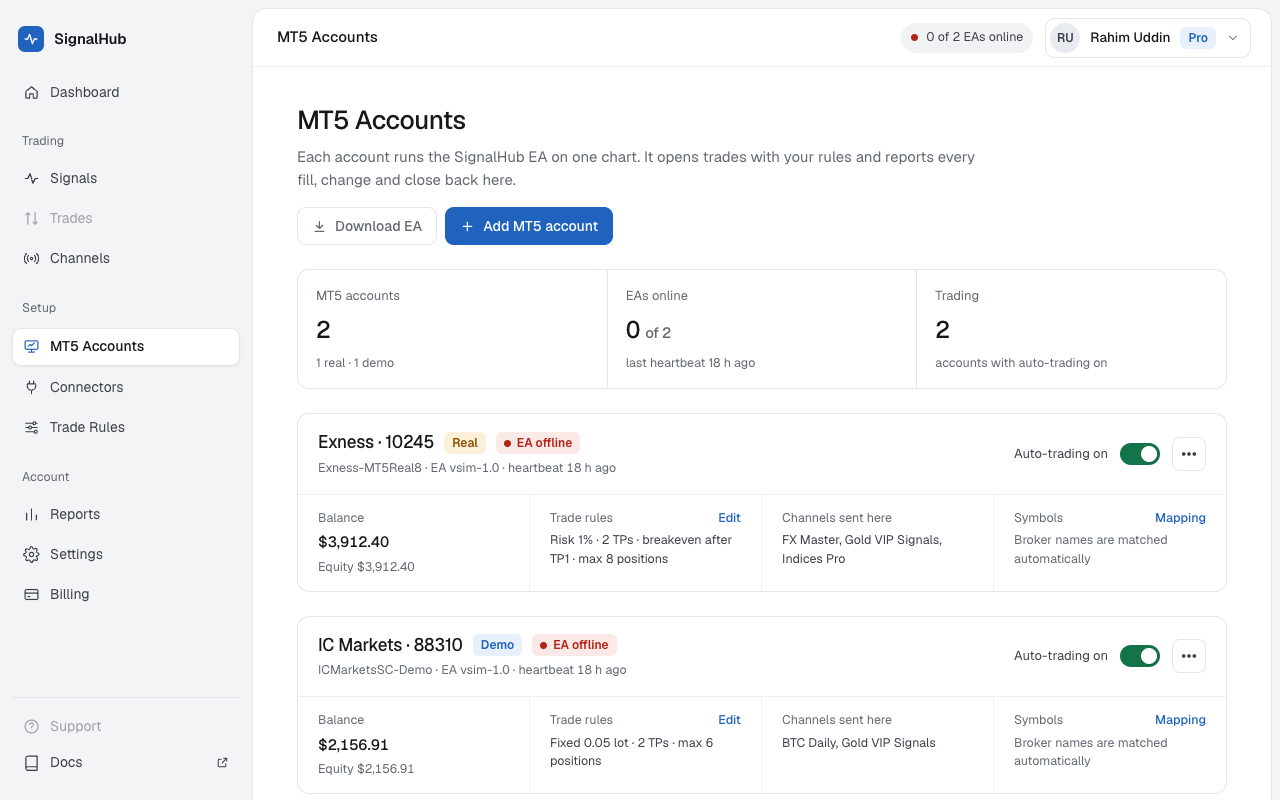
MT5 Accounts · your accounts and their EA status Put the EA in MetaTrader 5
Download the EA with Download EA on MT5 Accounts. In MT5 open File → Open Data Folder →
MQL5→Expertsand copy the file there. Back in MT5, right-click Expert Advisors in the Navigator and choose Refresh.Allow the EA to connect
Tools → Options → Expert Advisors: turn on Allow algorithmic trading and Allow WebRequest for listed URL, then add the SignalHubFX address shown on MT5 Accounts.
MT5 · Options → Expert Advisors with the address added Drop the EA on a chart
Any symbol and any timeframe: the EA trades every symbol from one chart. Paste your key into
InpApiKey, tick Allow Algo Trading, and make sure the Algo Trading button in the toolbar is green. Keep that chart open.Check that it's online
The chart's corner shows CONNECTED. In your panel the account turns EA online within a few seconds and shows its broker, number, balance, and whether it's real or demo.
Keep MT5 runningTrades only happen while MT5 is open. If your computer sleeps, run MT5 on a Windows VPS.
If it doesn't connect
- The Experts tab in MT5's Toolbox shows why. What each message means.
- "Wrong key" or "account mismatch": copy the key again, or make a new one for this MT5 account.
- Nothing at all: the address isn't in the WebRequest list, or Algo Trading is off.
Real accounts
A real account trades only after you accept the risk notice once, from its card on MT5 Accounts. Use a small risk setting at first; see Trade Rules.