Your panel/Channels
Channels
The channels you follow, which accounts trade each one, and how each is read.
Open Channels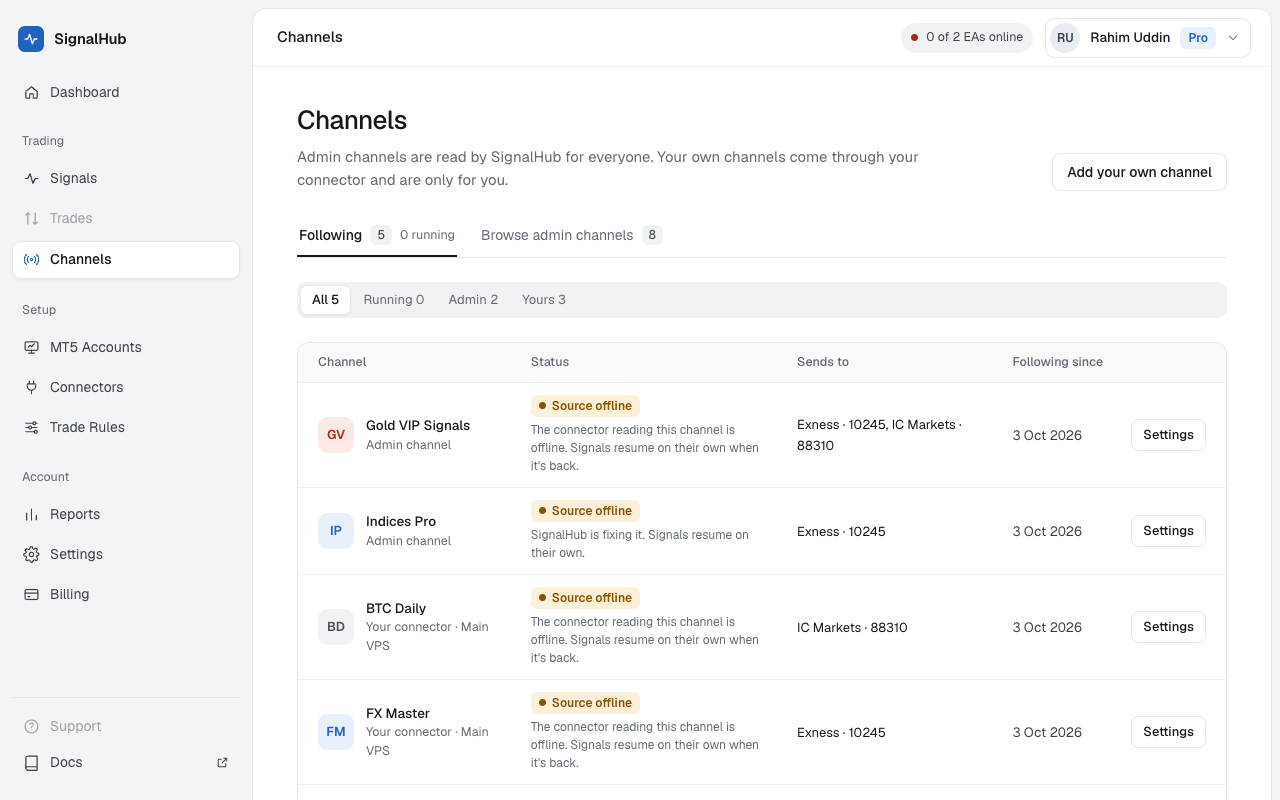
Following and Browse
- Following: every channel you get signals from, admin channels and your own, with its status and the accounts it's sent to.
- Browse: admin channels SignalHubFX reads, with what they trade. Click Follow. On Free, only channels marked Free, 2 at most.
Your own channels appear here when you tick them in Connectors.
A channel's settings
Click a channel to open its settings:
| Setting | What it does |
|---|---|
| Take signals from this channel | Off pauses it: messages are still read and shown, nothing trades. |
| Send signals to | The MT5 accounts that trade it. None ticked: the channel shows No account and nothing trades. |
| Signal format (own channels) | The order type when the signal doesn't say (Auto, Market or Pending), a typical message, and words a message must contain. |
| How recent messages were read | The last messages and what each became. All messages opens the full list. |
With Auto, an entry away from the price becomes a pending order: for a BUY, an entry below the price is a Buy Limit and above it a Buy Stop; for a SELL the other way round.
Status
- Live: signals are traded.
- Paused: you paused it.
- Source offline: the connector that reads it isn't connected. Signals wait until it's back; admin channels show SignalHubFX's notice.
- Stopped by SignalHubFX: an admin channel's new trades are paused for now; open trades keep their SL and TP.
Unfollow
Unfollowing stops new signals at once; open trades stay as they are. For your own channel it also stops the connector from reading it.